
UC Berkeley Haas faculty, staff, and students are encouraged to set up their email signatures as outlined below. We provide a web-hosted Haas logo for simple insertion into your bMail (Berkeley Gmail) signature.
If you’d like to be emailed a signature template that you can copy/paste and replace with your own information, send an email to [email protected] with the subject, “Signature Template.”
Refer to Google for instructions on how to set up your email signature in bMail.
Signature Elements
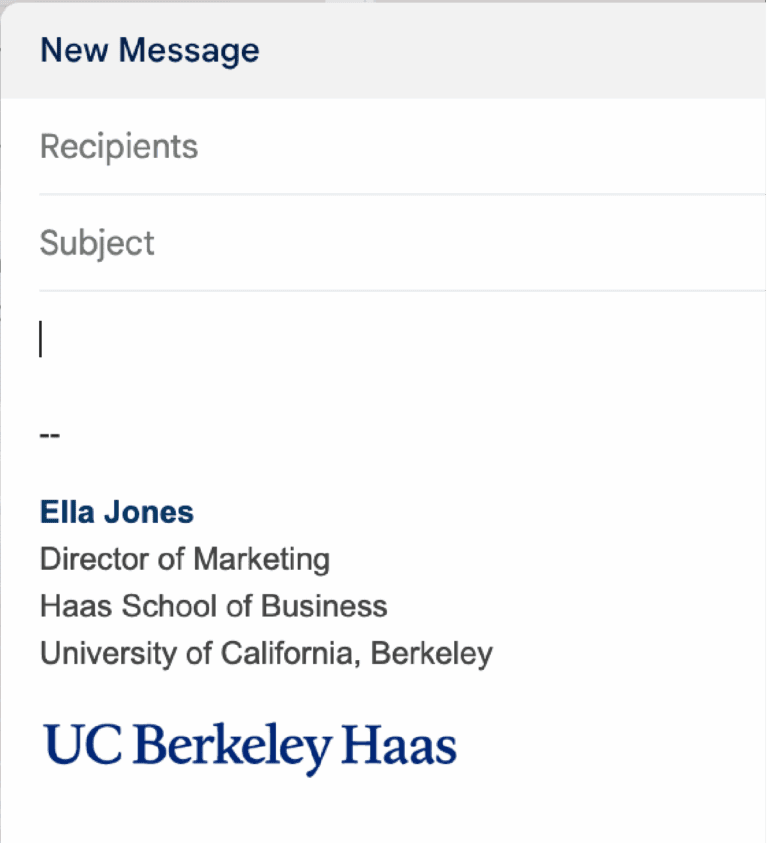
Recommended
- Full Name
- Title
- Haas School of Business
University of California, Berkeley - UC Berkeley Haas logo

Optional Additional Info
- Pronouns
- Name pronunciation
- Degree & graduation year
- Address
- Phone number(s) — must include 711 CA Relay link
- Web address
- Office location/hours
- Remote and on-campus workdays
- Upcoming out-of-office days

For Students
- Name
- Program & class year (e.g., MBA Candidate, Class of 2030)
- Haas School of Business
University of California, Berkeley - UC Berkeley Haas logo
Text Formatting

Name
Select the “Normal” font size, and the darkest blue (RGB 7, 55, 99).

Everything Else
For all of the remaining text in your email signature, select the “Normal” font size, and the darkest gray text color (RGB 68, 68, 68).
Inserting the Logo
Step 1
Right-click your preferred image below (use only one) and select Copy Image Address.


Step 2
Paste the URL into the Web Address (URL) field, found on Insert Image when setting up your email signature in bMail.
Step 3
*Important! Skipping this step will result in a very large image in your email signature.*
Click on the image and select the Medium size if using the logo only.
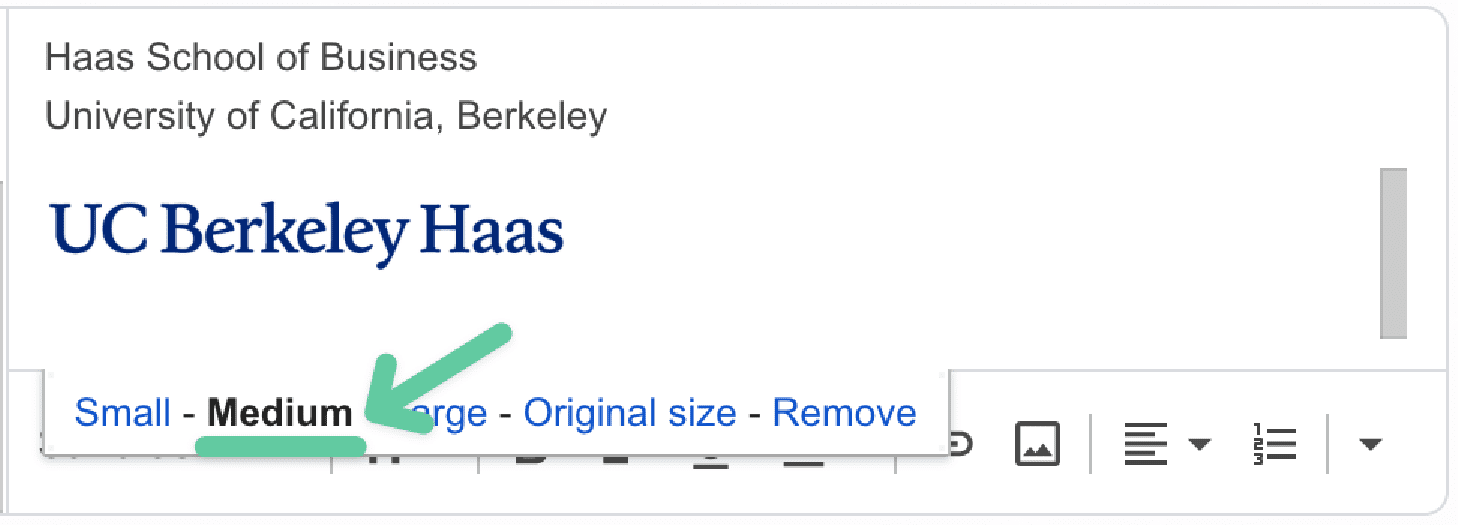
Select the Large size when using the image with the Defining Leadership Principles.

If you’d like to be emailed a signature template that you can copy/paste and replace with your own information, send an email to [email protected] with the subject, “Signature Template.”